DECEMBER 15, 2023
/
#FIGMA
How to Use Variables in Figma – A Handbook for Beginners
Table of Contents:
What are variables?
Differences between Variables and Styles in Figma
Why are Variables Important to the Design Process?
How to Create Variables in Figma
How to Create Colour Variables in Figma
How to Create Colour Variables for Tokens
How to Implement Colour Variables in Your Designs
How to Create Different Modes with Variables
How to Create Number Variables in Figma
How to Create String Variables in Figma
How to Create Boolean Variable in Figma
How to Use Variables for Advanced Prototyping
Advanced Prototyping with Number Variables
Advanced Prototyping with Boolean Variables
How to Use Variables for Developers- Using APIs
Conclusion
What Are Variables?
Differences between Variables and Styles in Figma
Variables are a more advanced feature, and they allow you to define and reuse values like colours, text, and spacing across your designs. On the other hand, styles are predefined sets of design properties such as text styles, colour styles, and effect styles.
Variables allow designs to change when used in various contexts, because of their dynamic nature, unlike styles. For example, you can change your designs from light mode to dark mode or have padding values change when designing for different devices. This makes variables useful for creating design systems with adaptable components.
Variables offer a more flexible design process in creating flexible design components, especially where you want to change values like button text or color on different instances of the same component. Styles are typically used for maintaining consistent design elements like button styles, text headings, or colour palettes.
Variables can store raw, single values, while styles store sets of values.
Why are Variables Important to the Design Process?
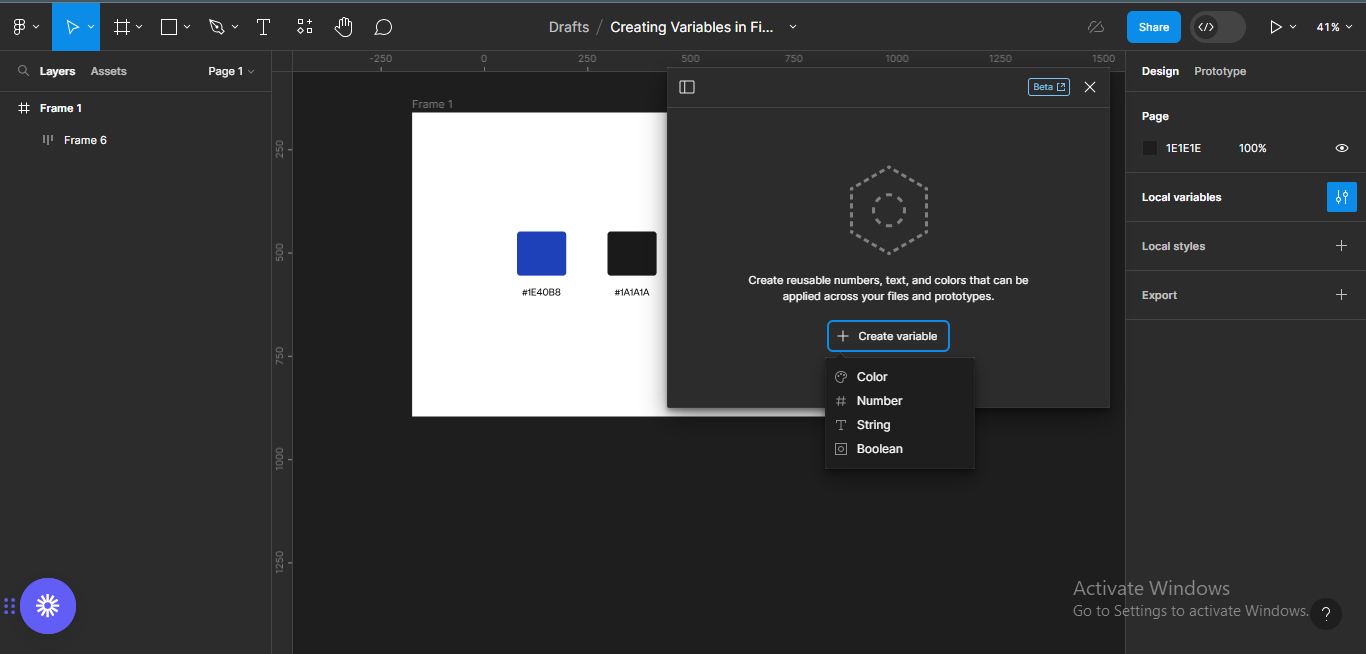
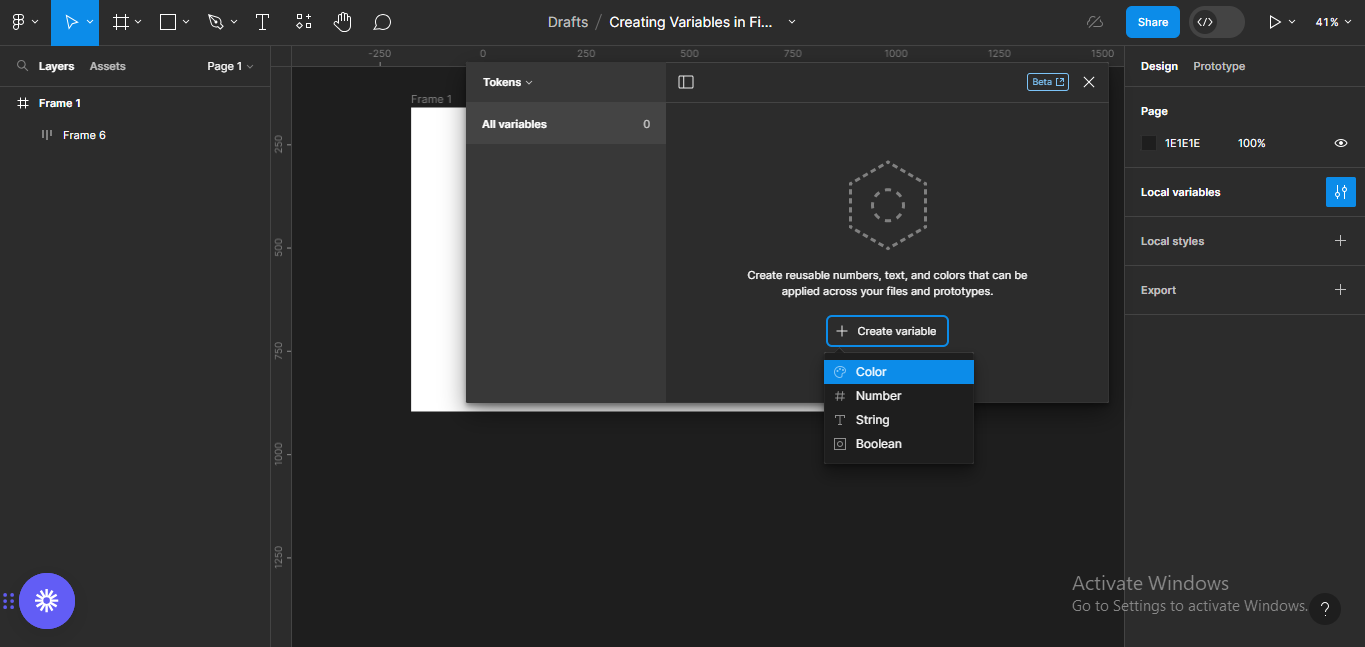
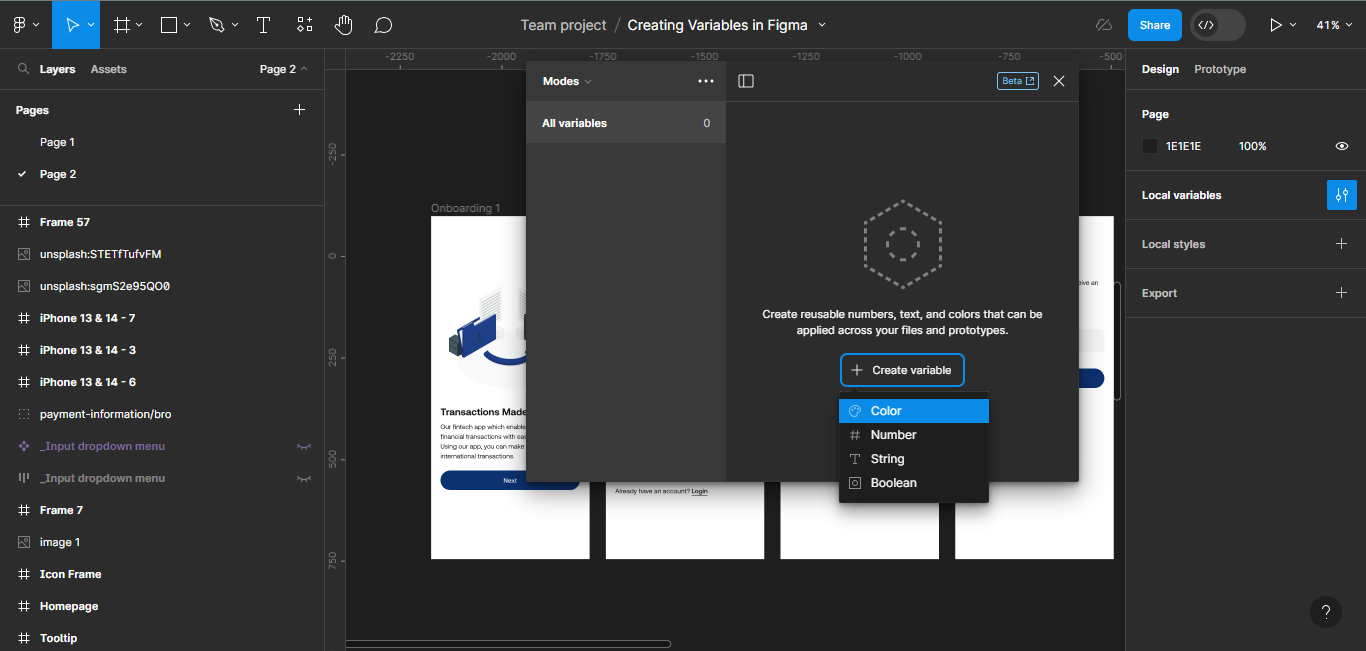
How to Create Variables in Figma
Color: used for colour fills.
Number: used for dimensions, corner radius, and auto layout properties.
String: used for text layers and variant properties.
Boolean: used to toggle layer visibility.
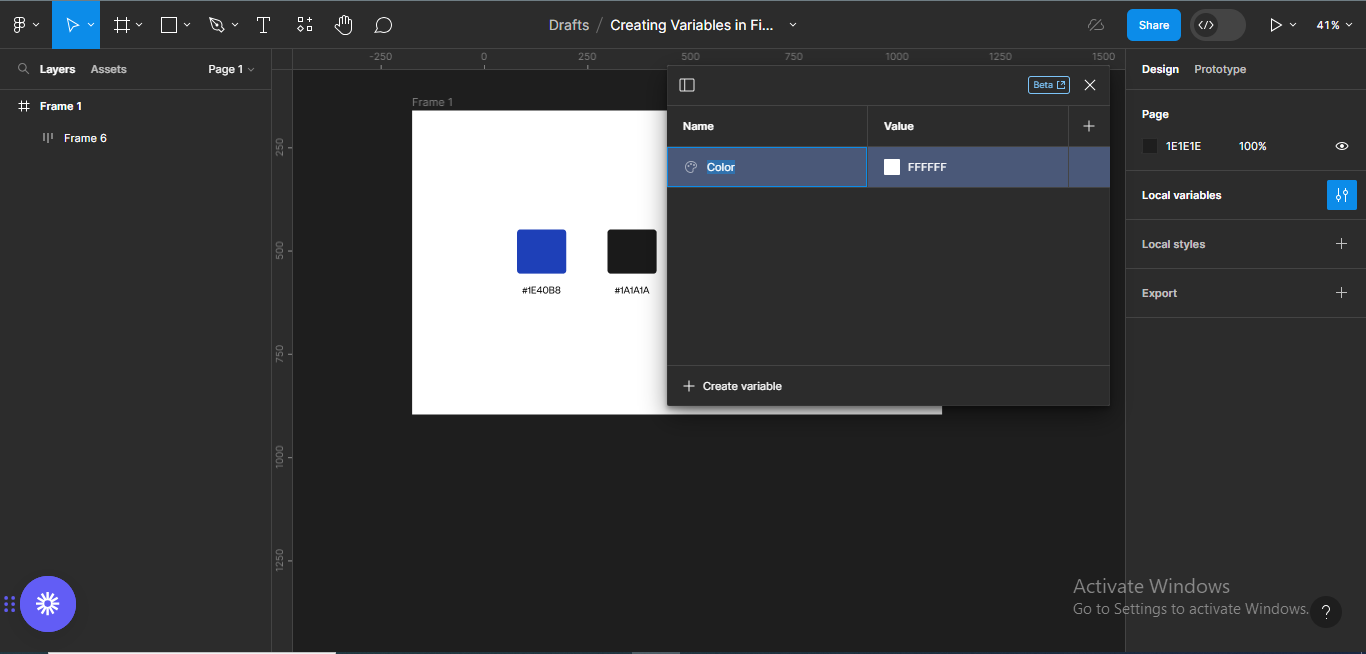
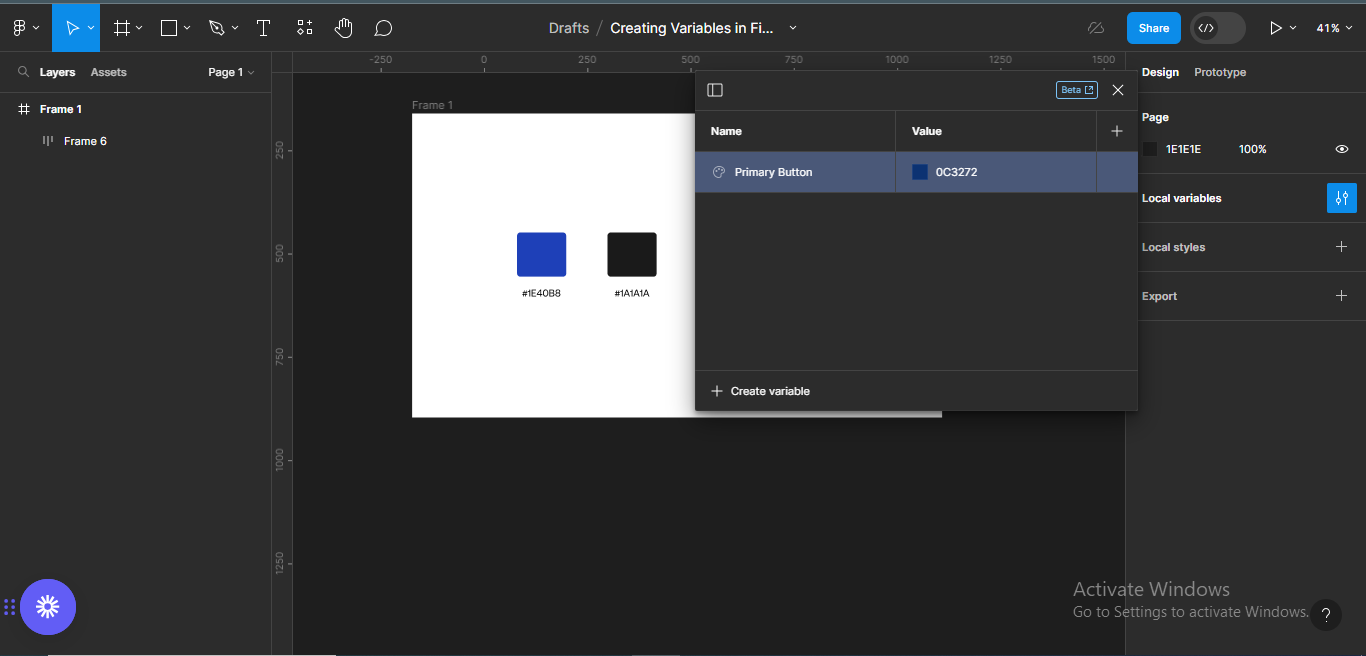
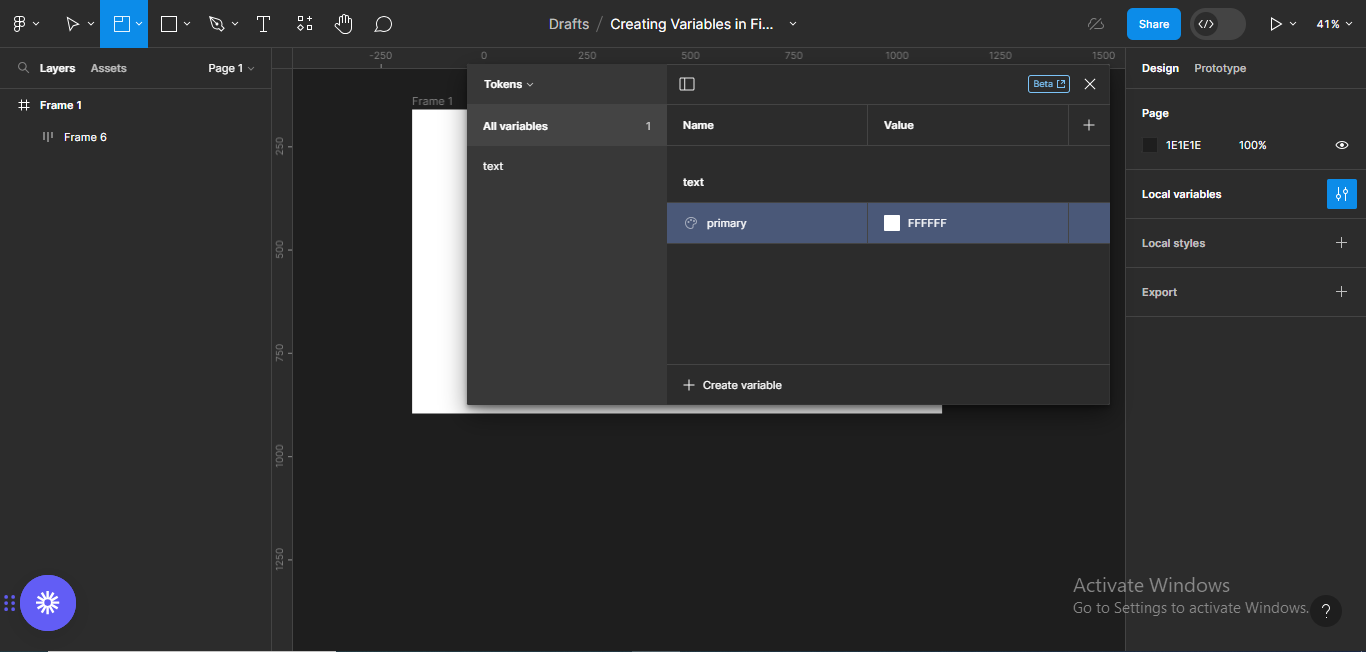
How to Create Colour Variables in Figma
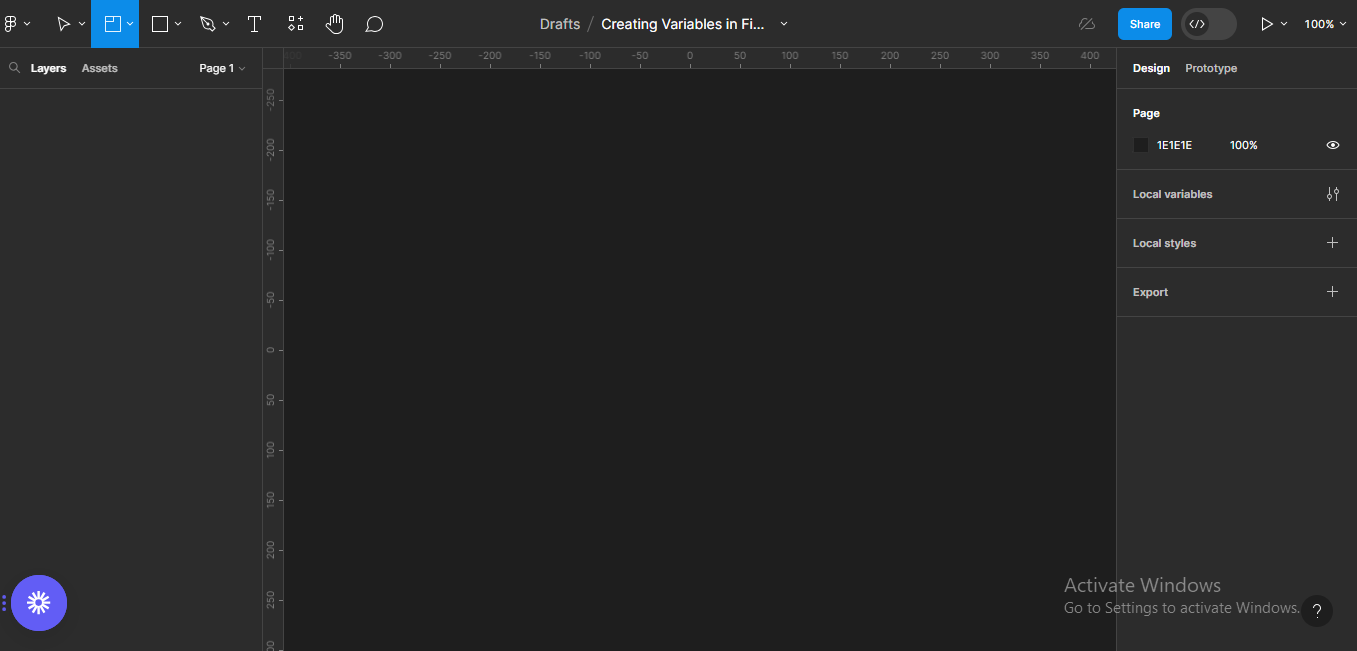
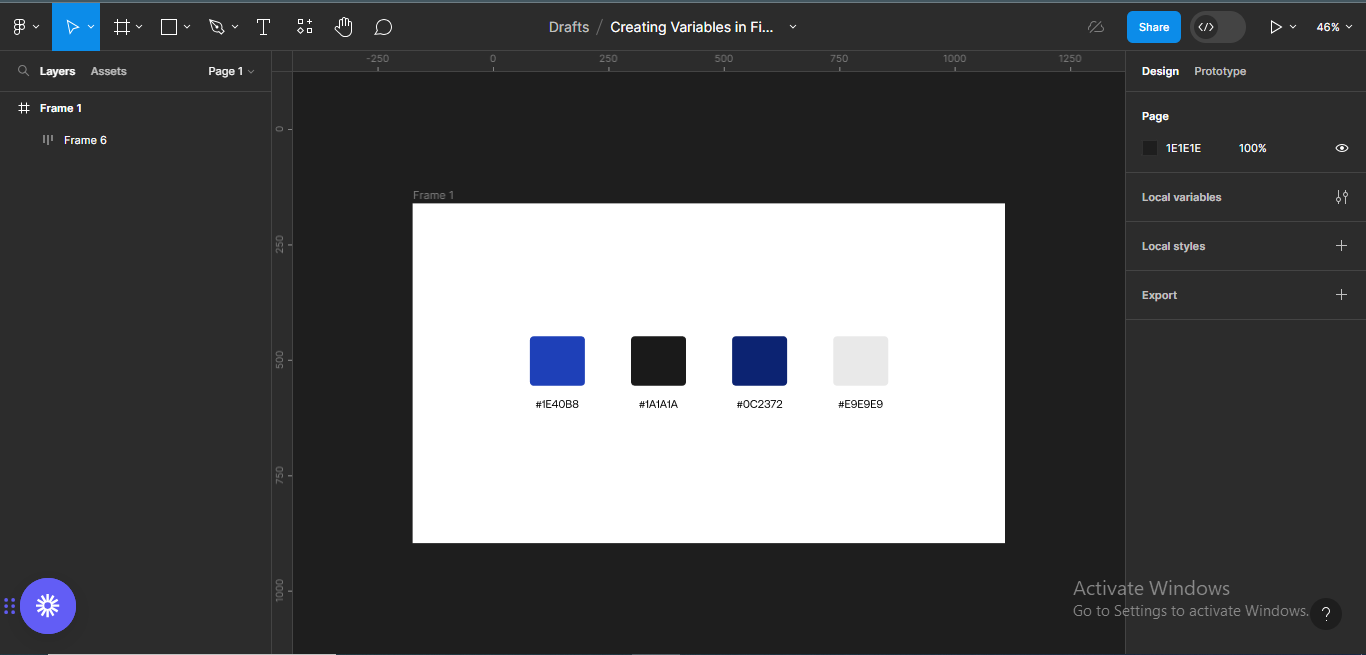
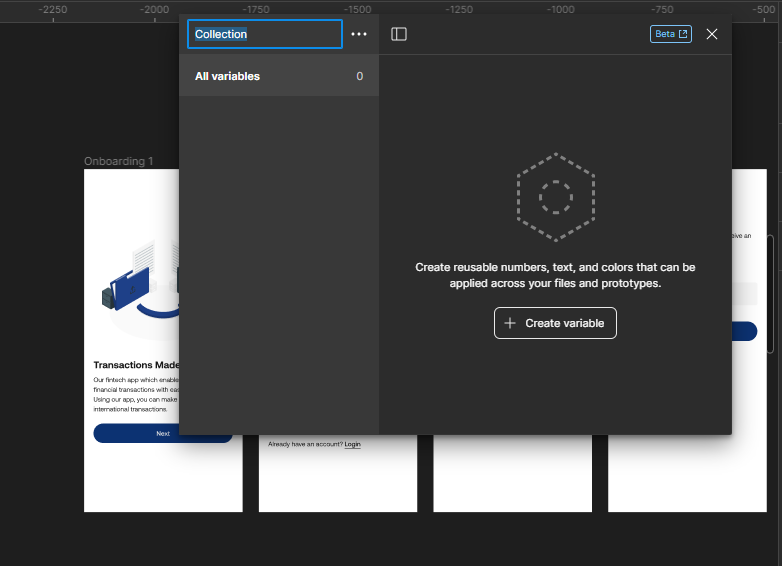
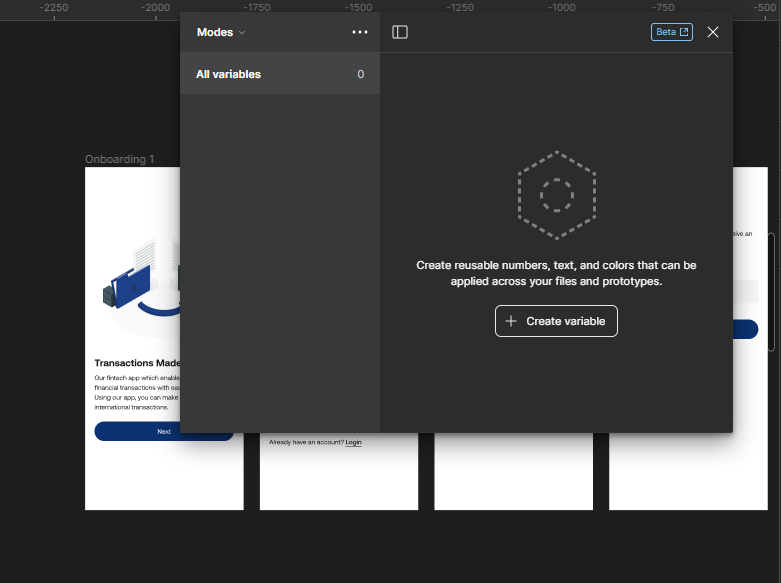
Step 1: Open a new Figma file
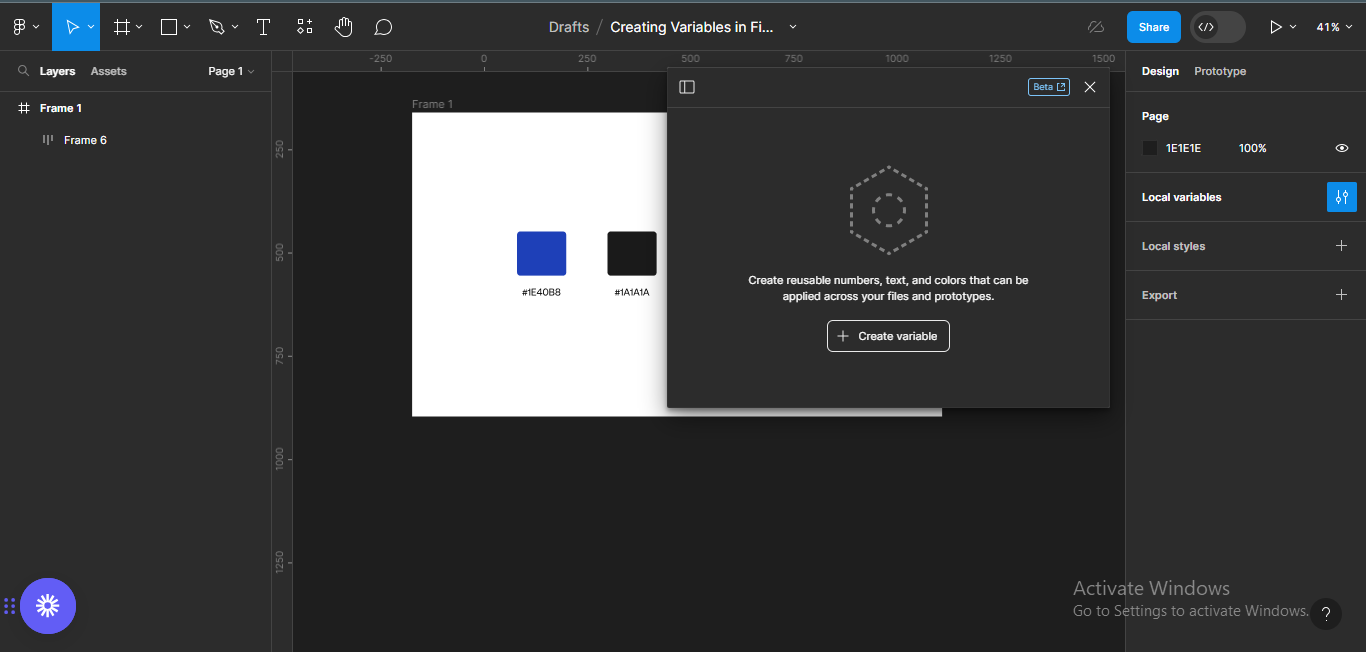
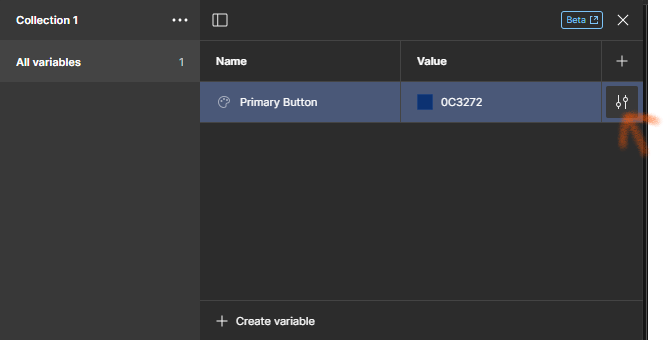
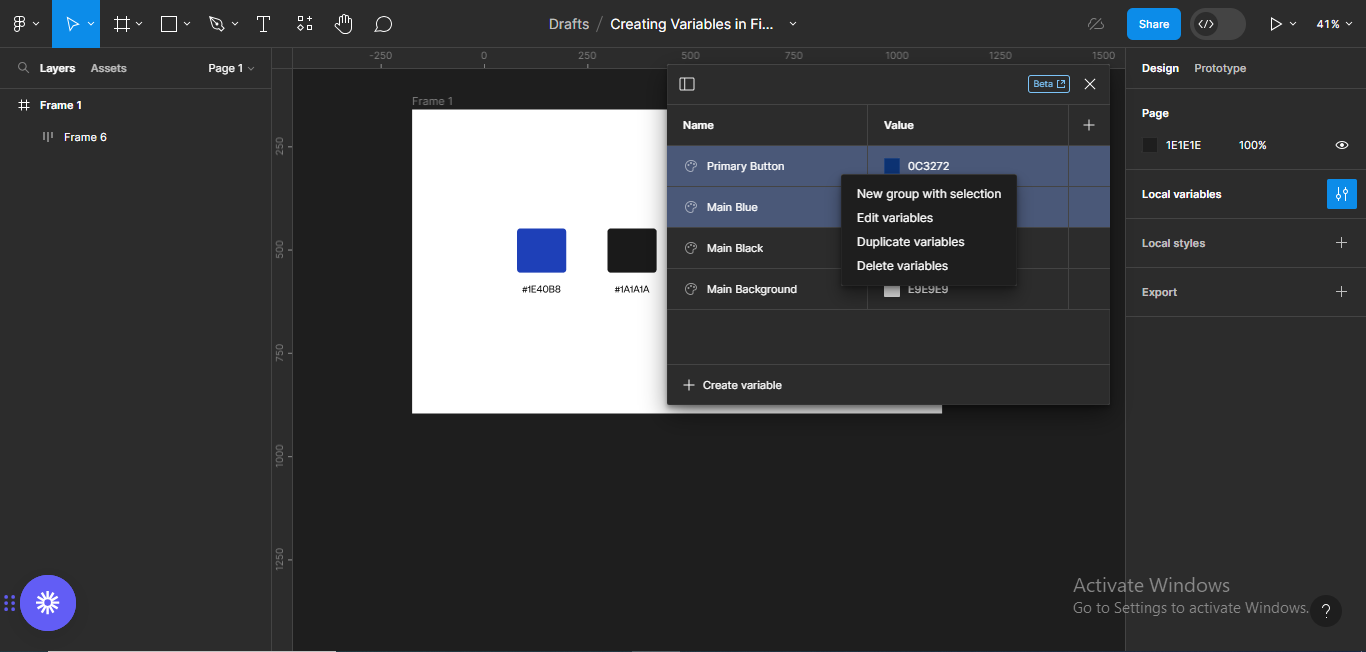
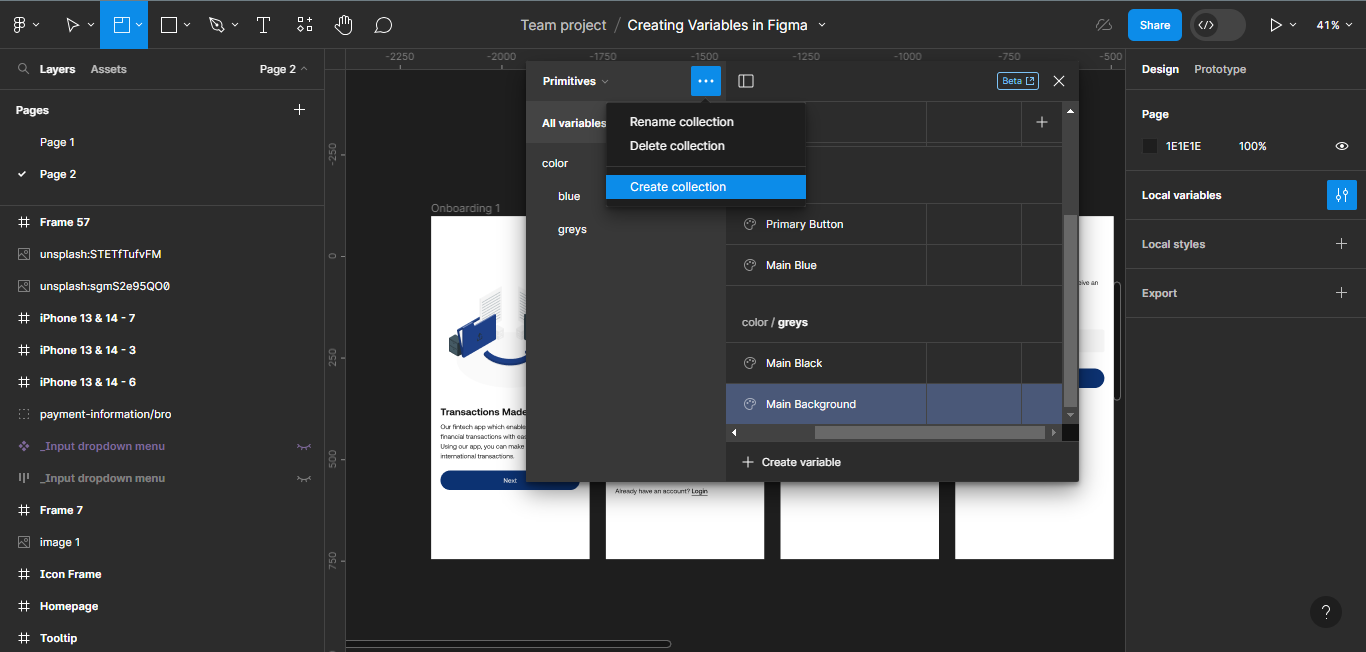
Edit variables
Duplicate variables
Delete variables
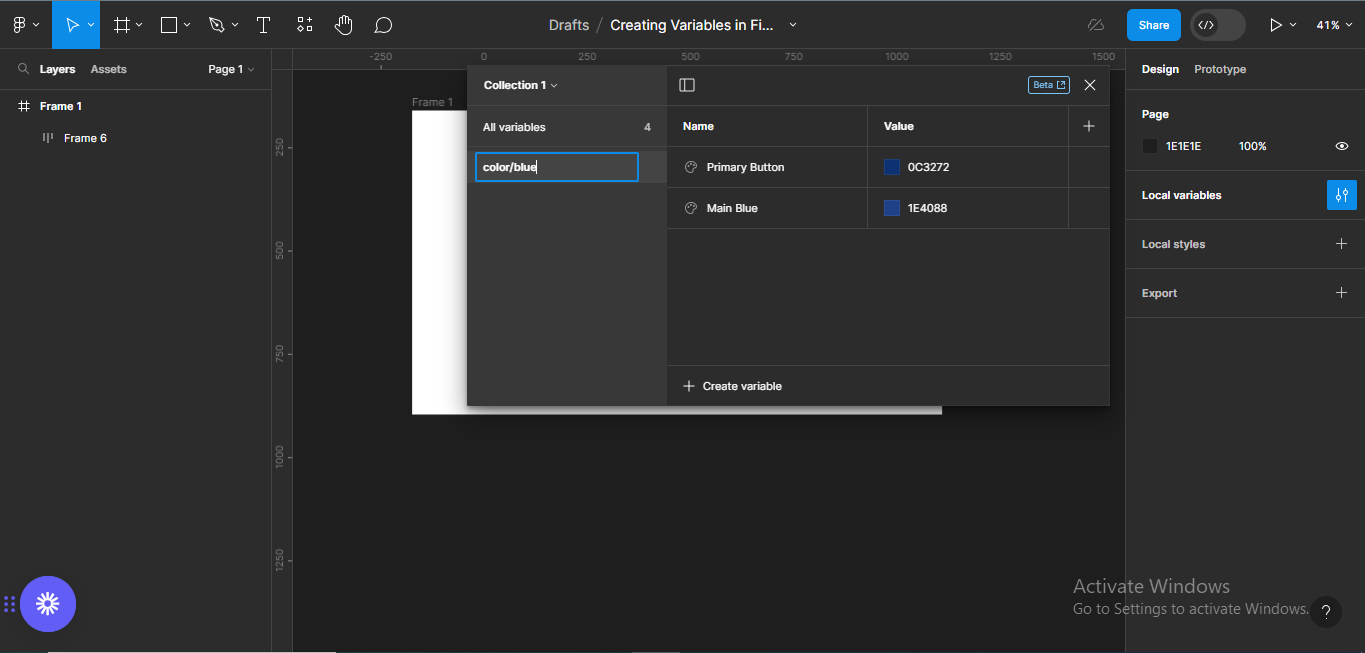
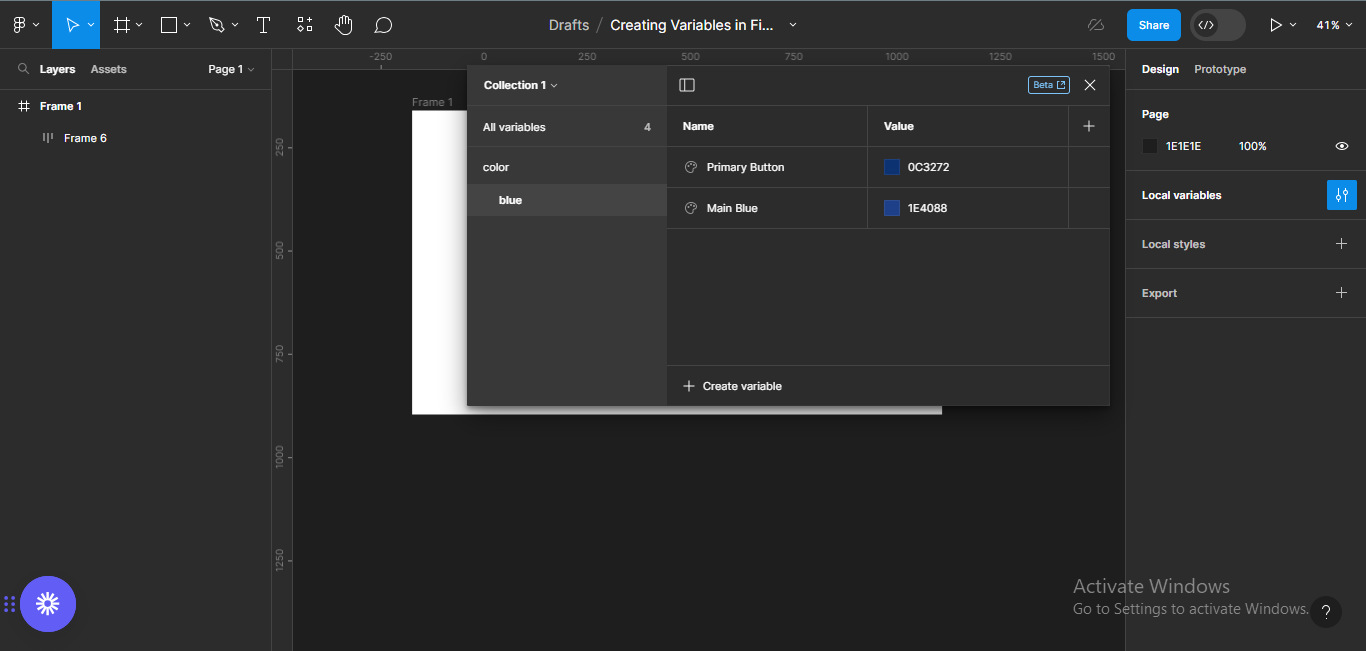
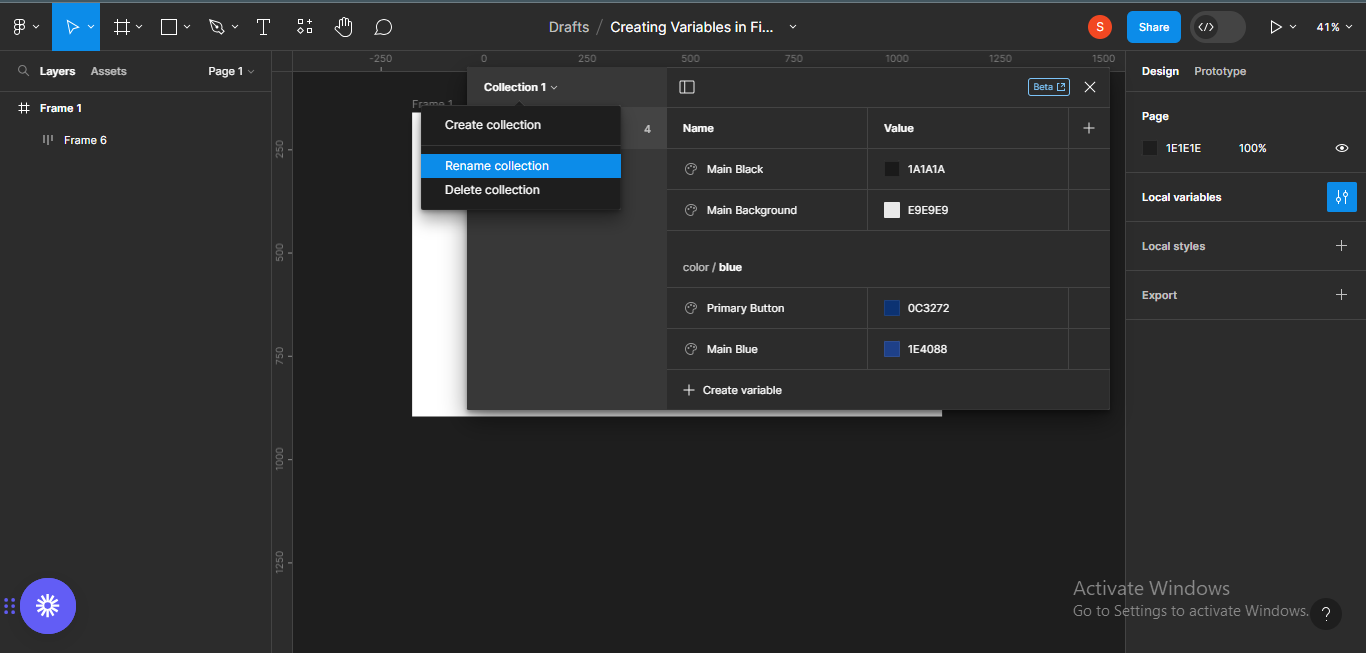
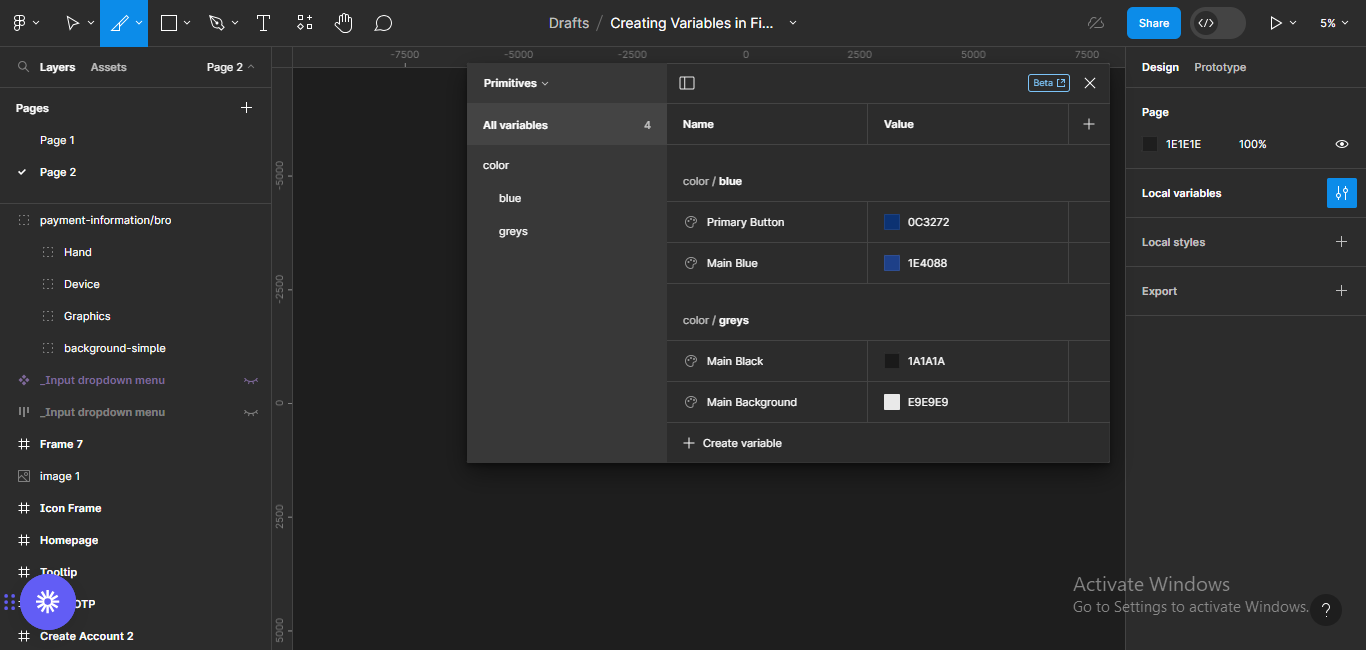
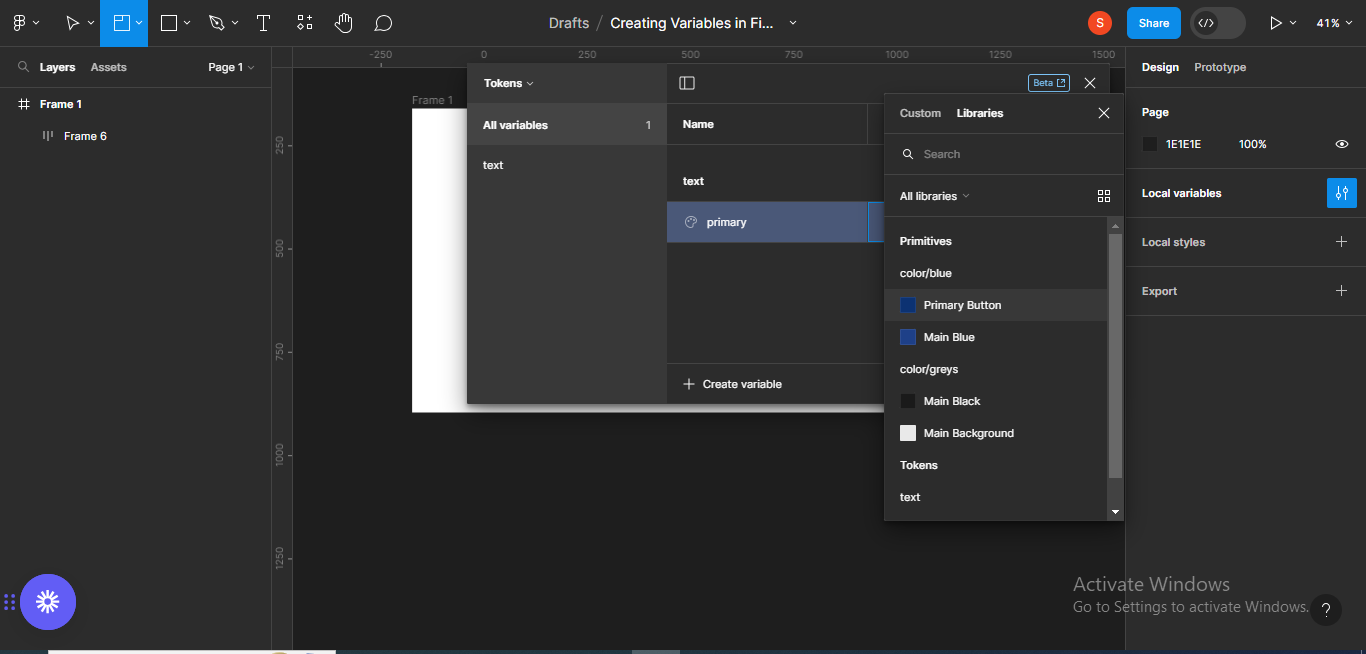
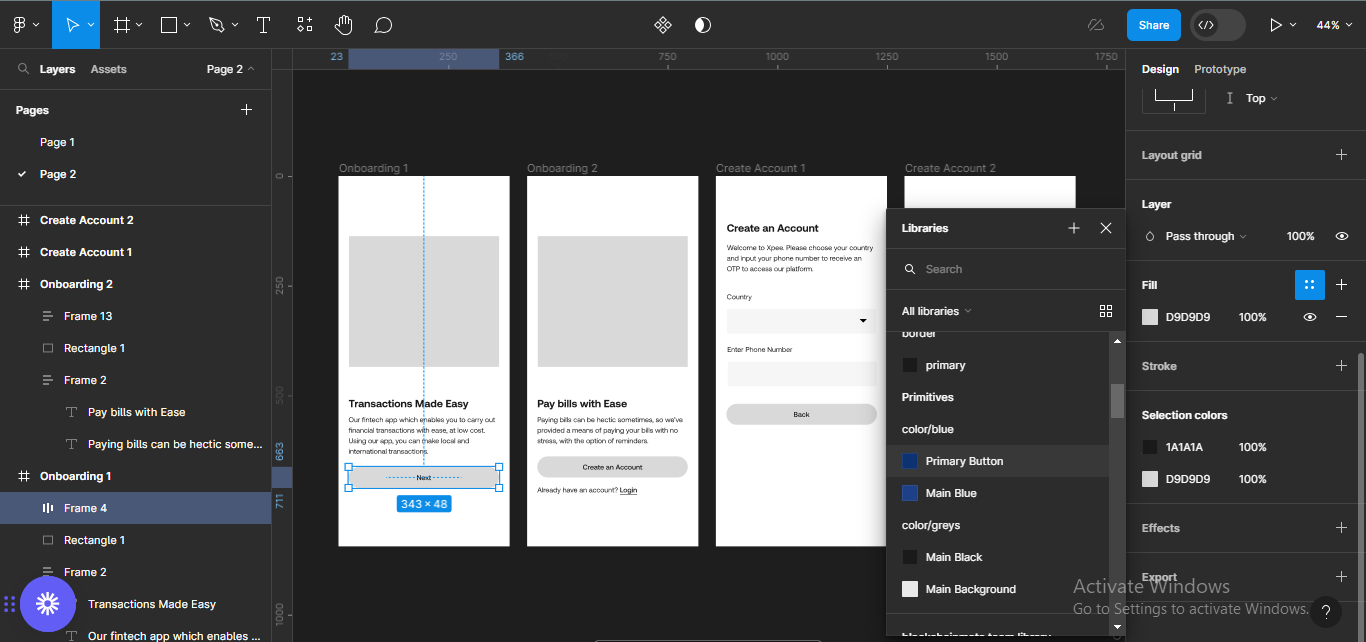
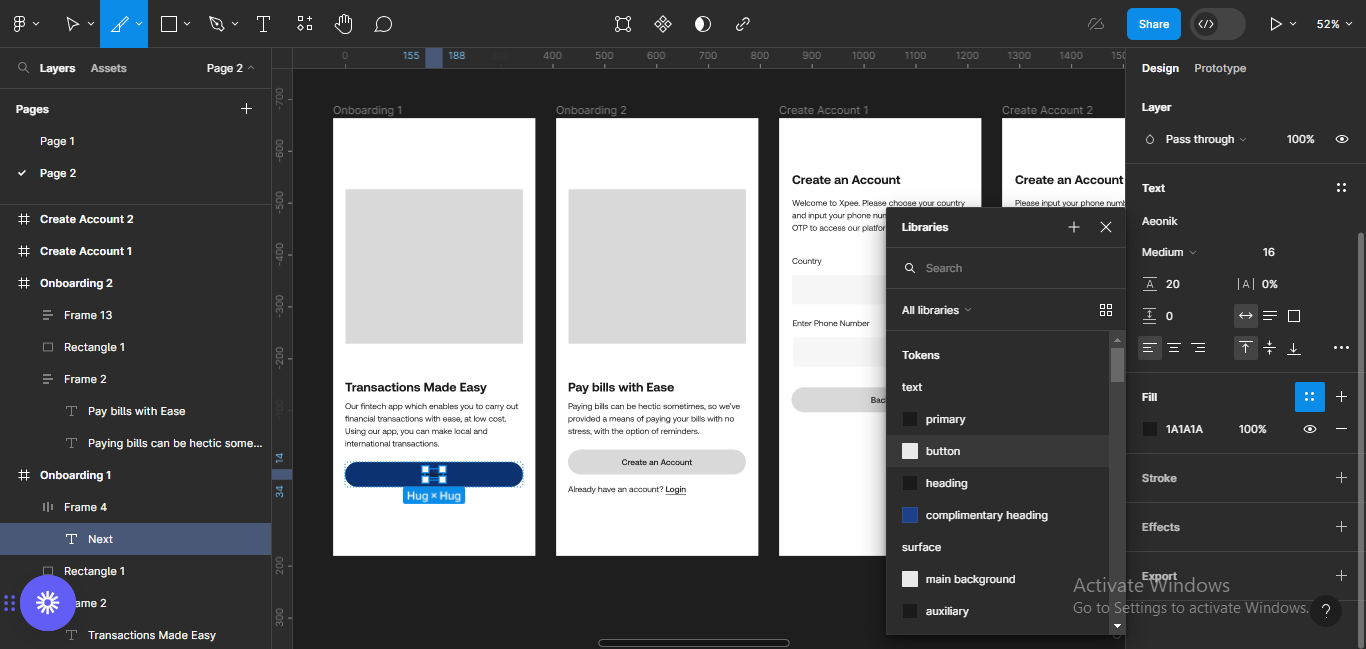
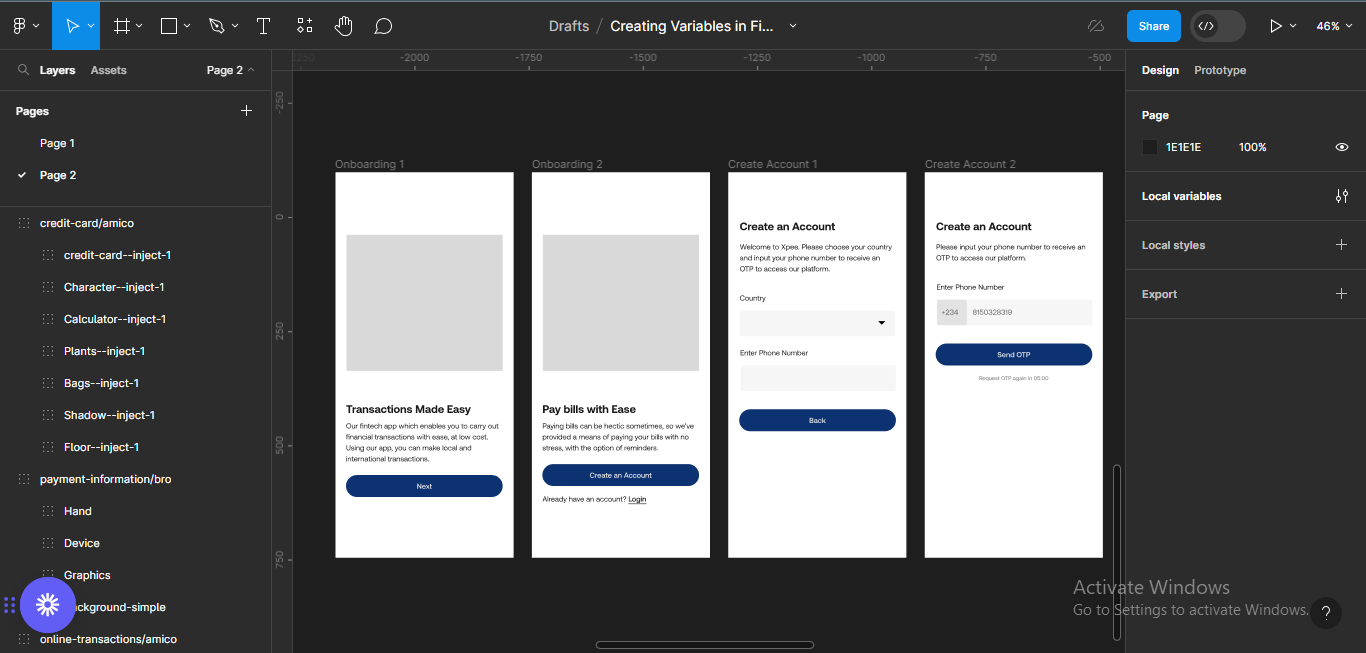
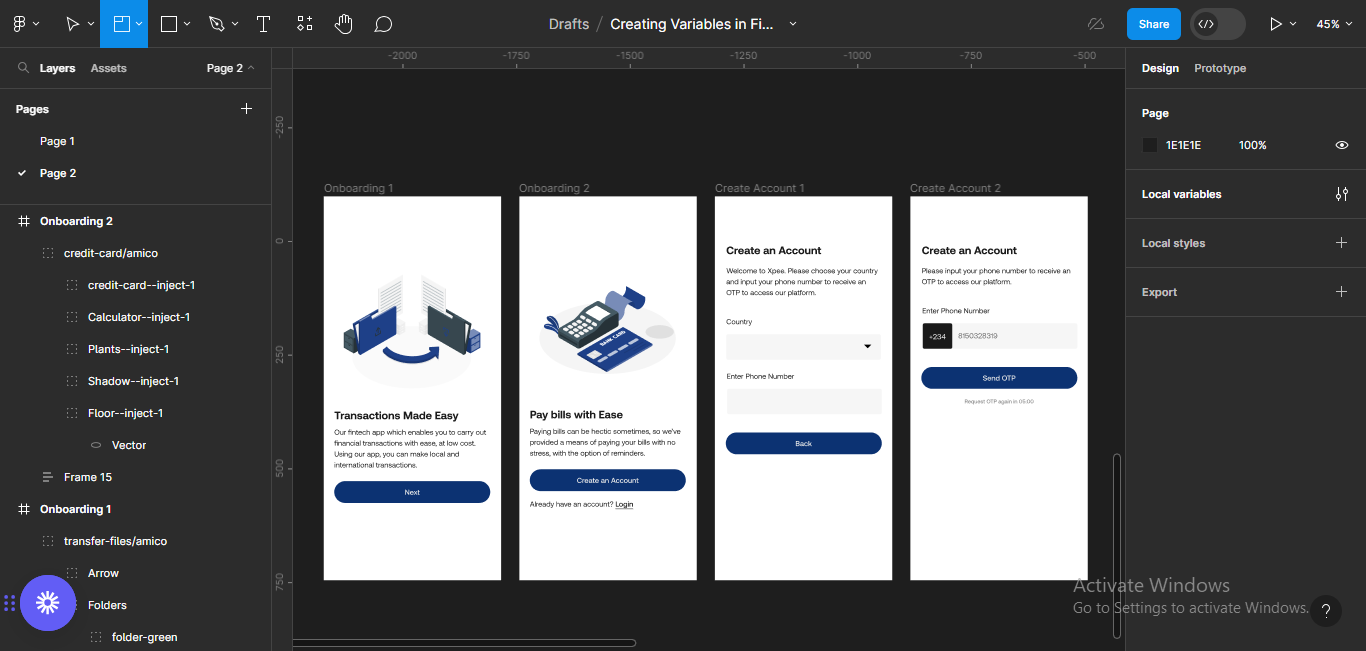
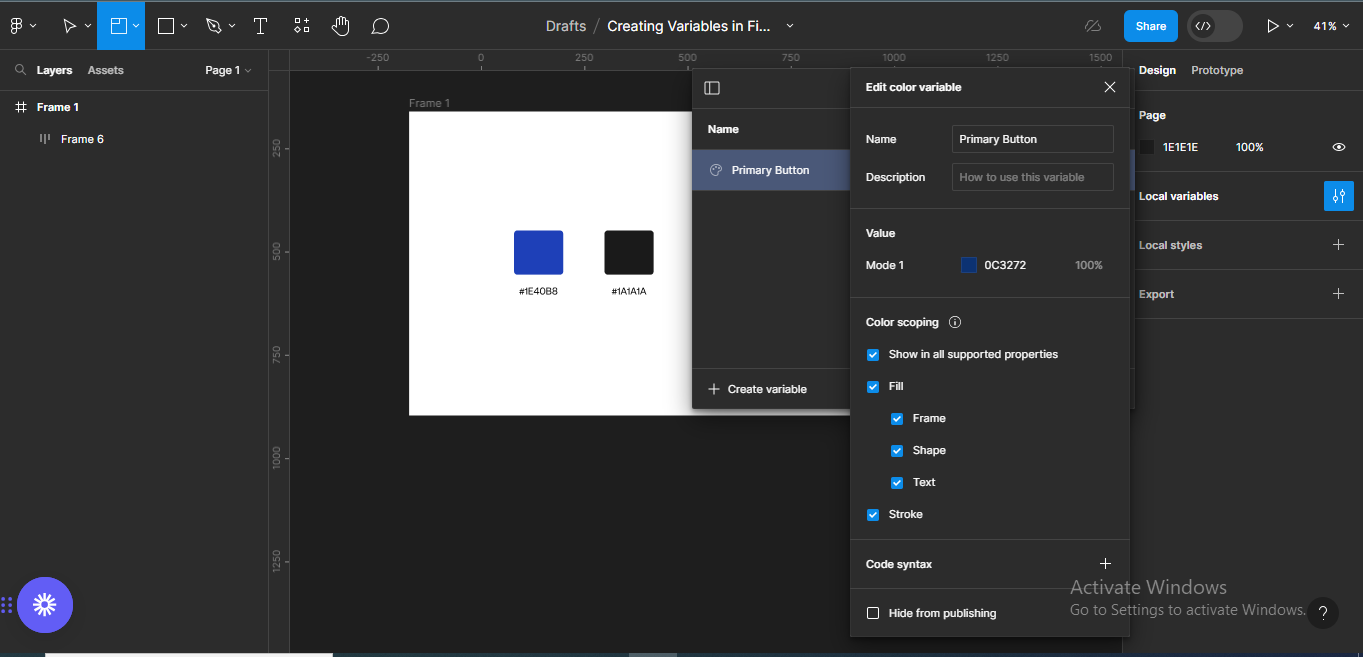
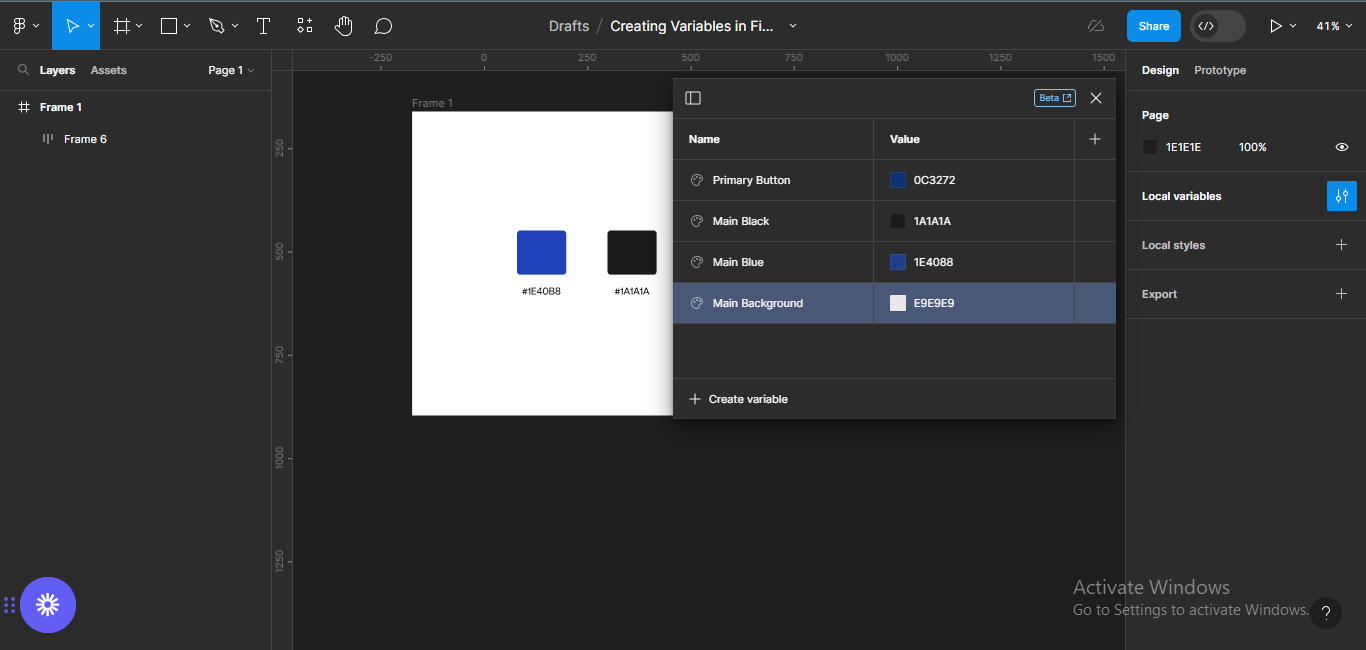
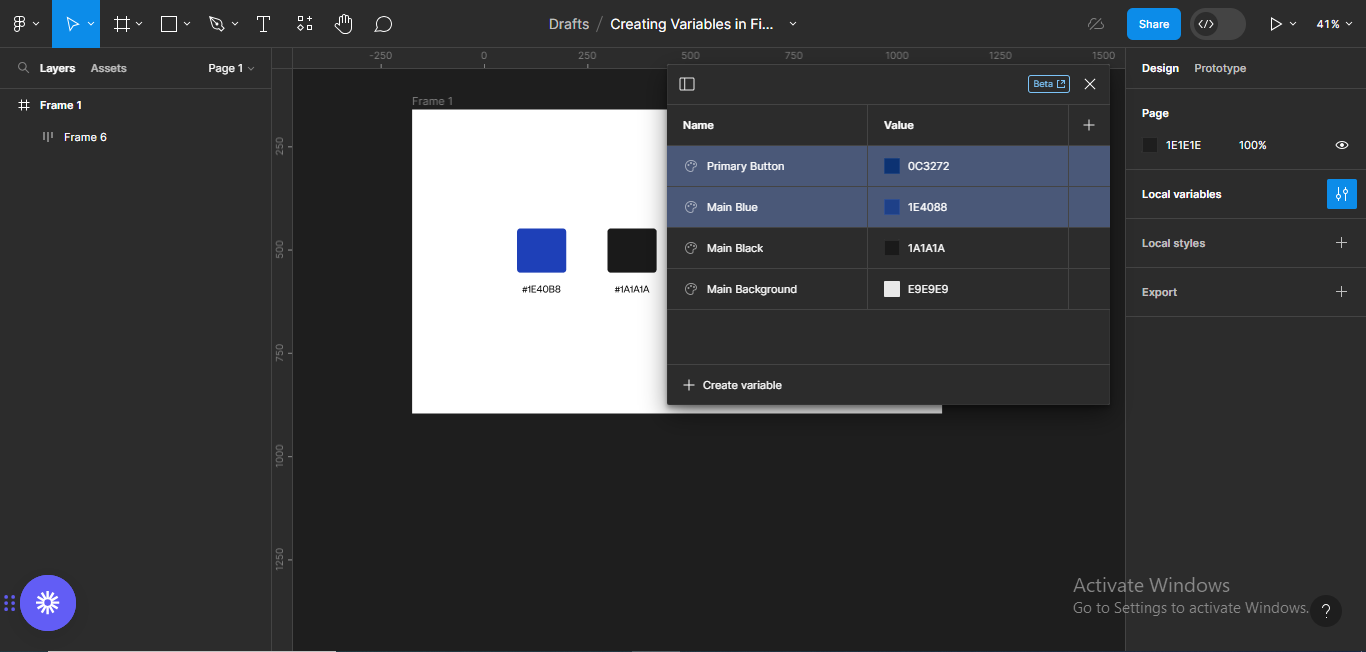
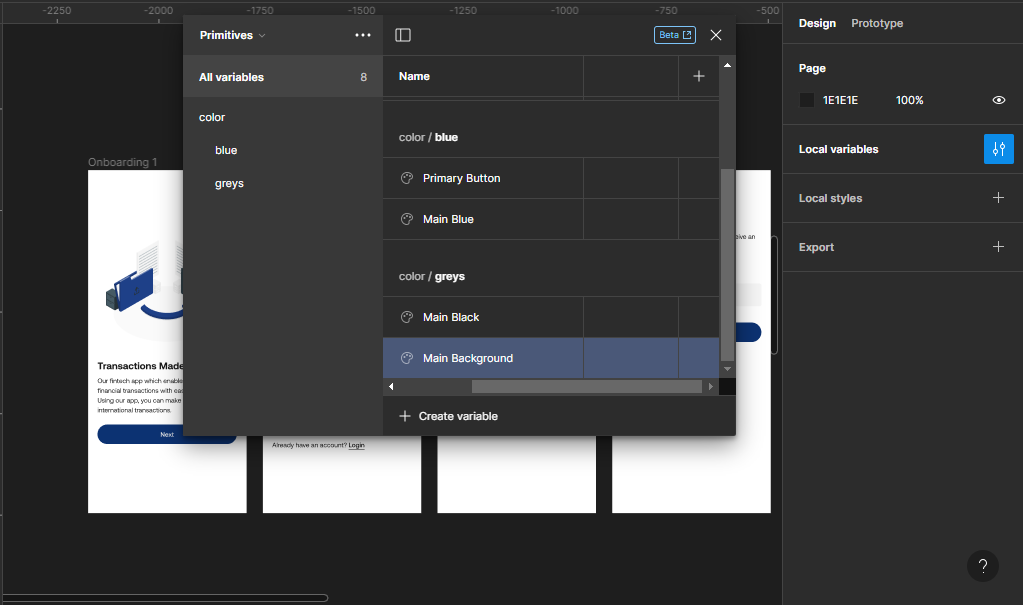
Primary Button
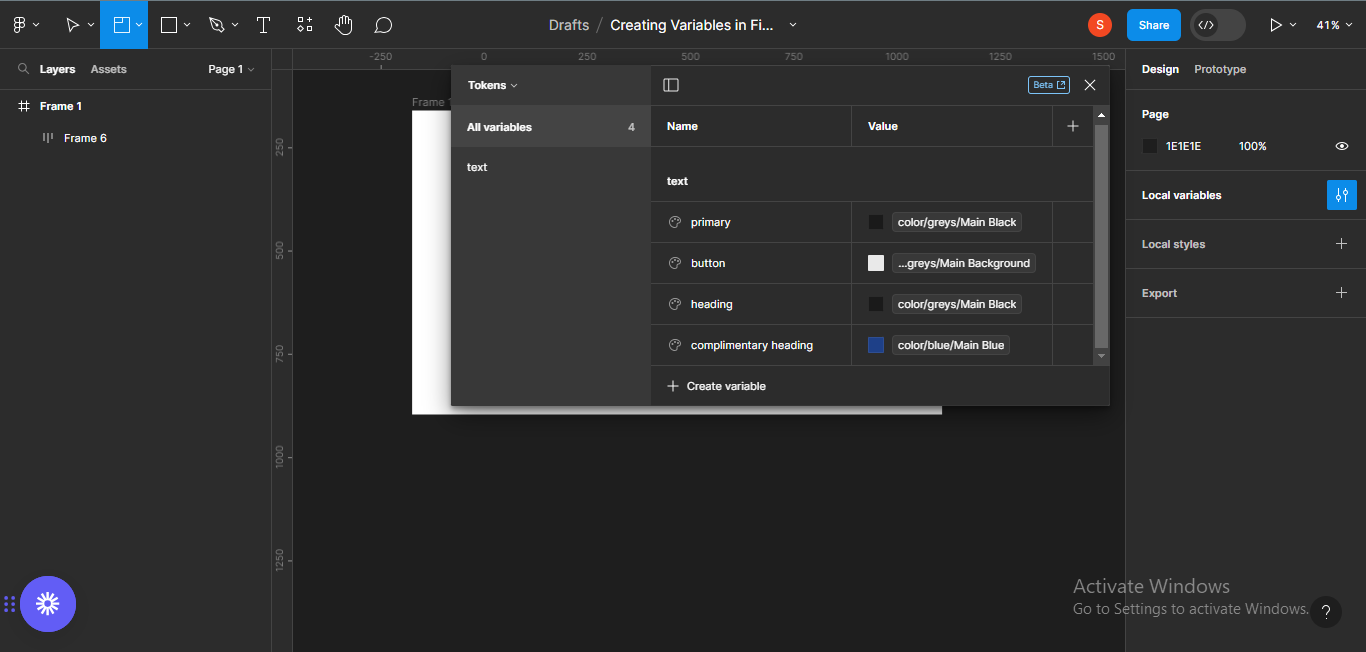
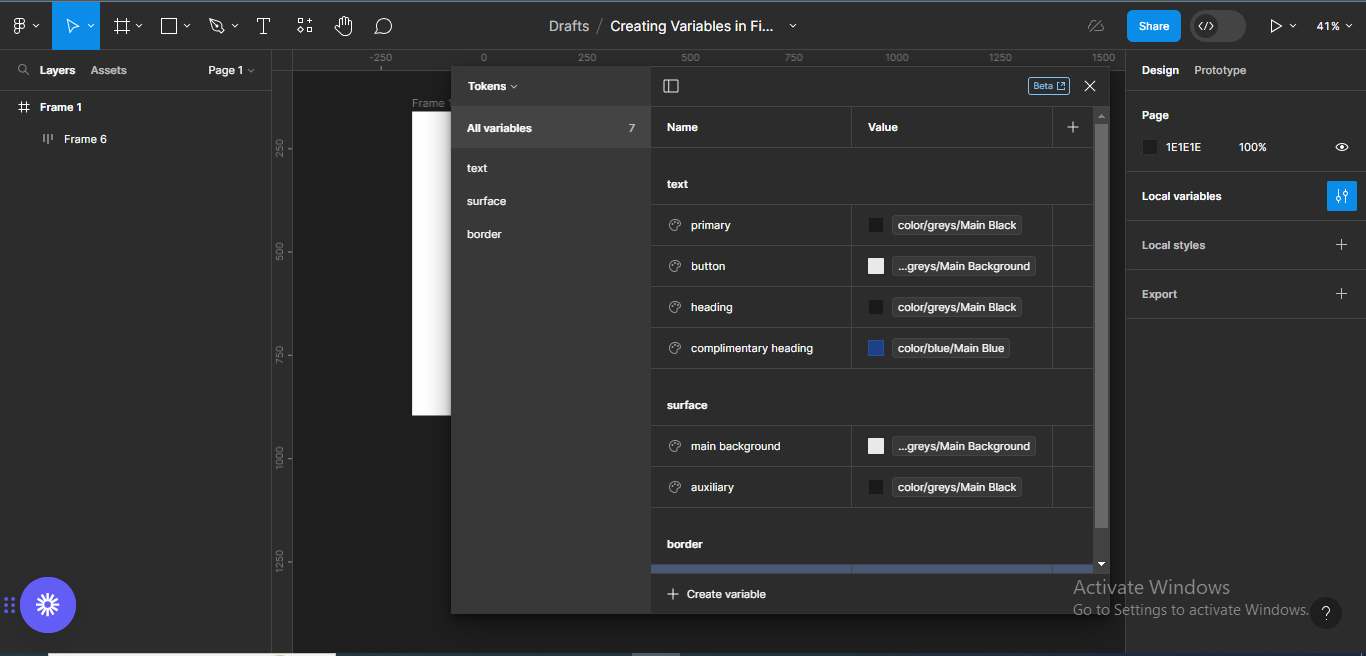
Main Blue
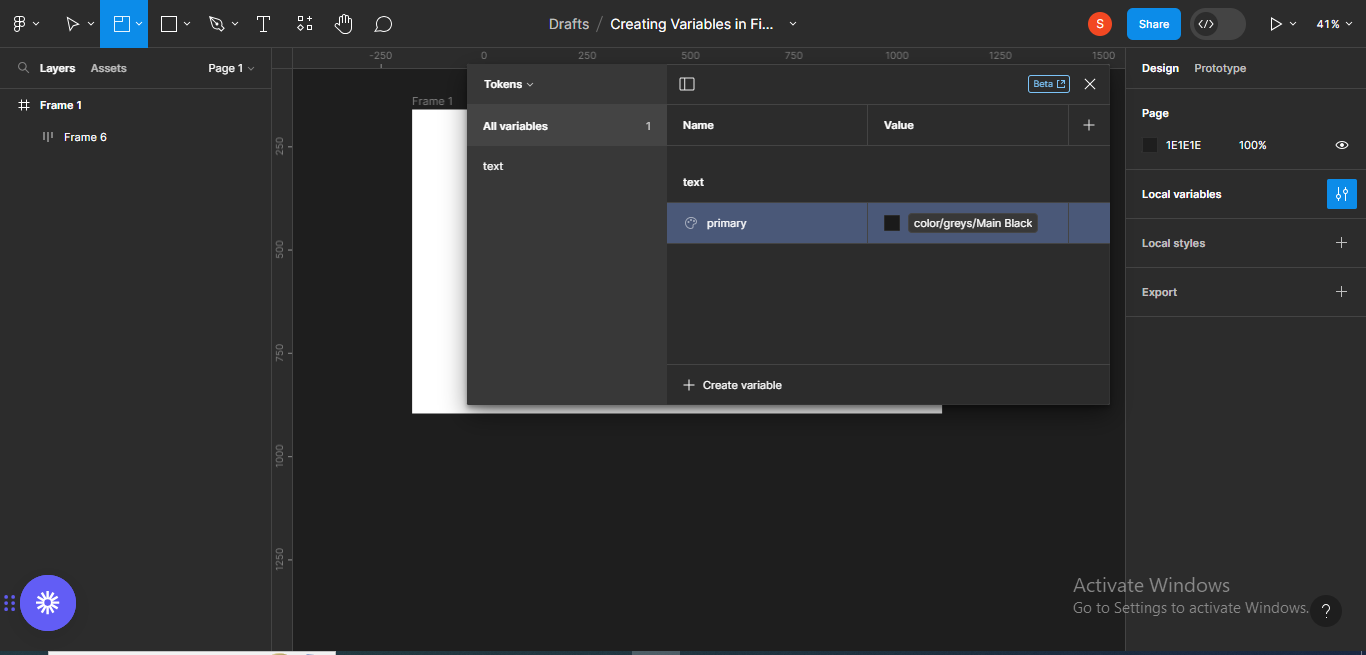
Main Black
Main Background
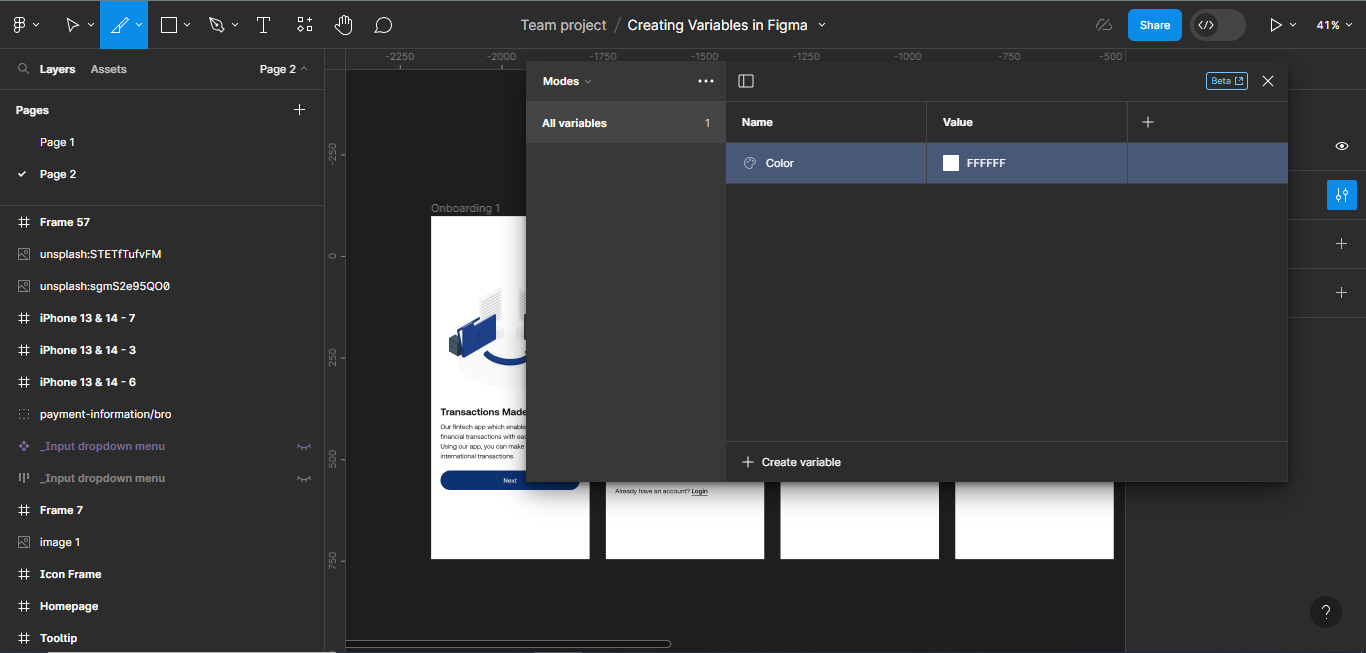
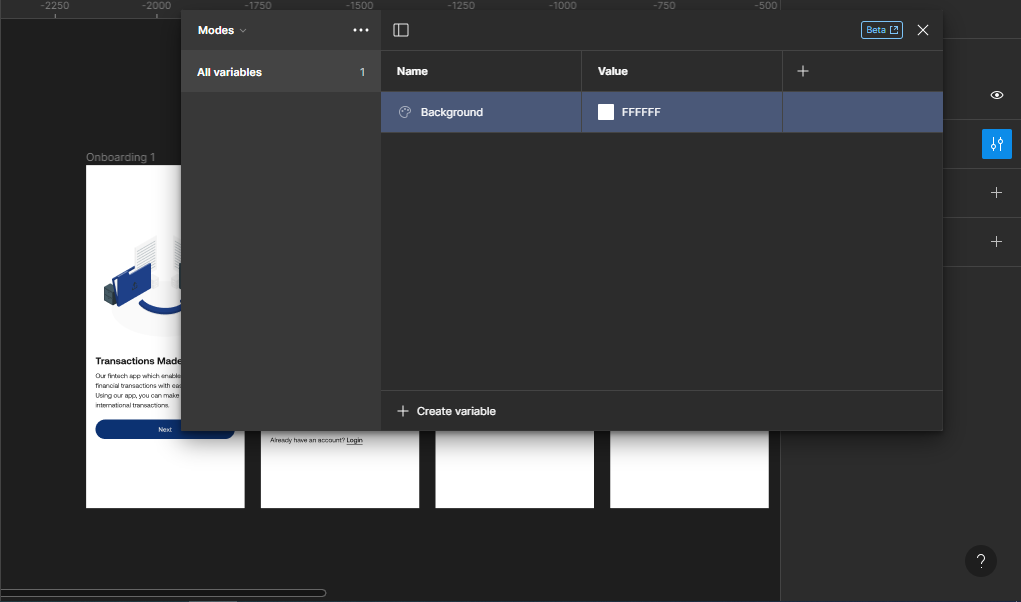
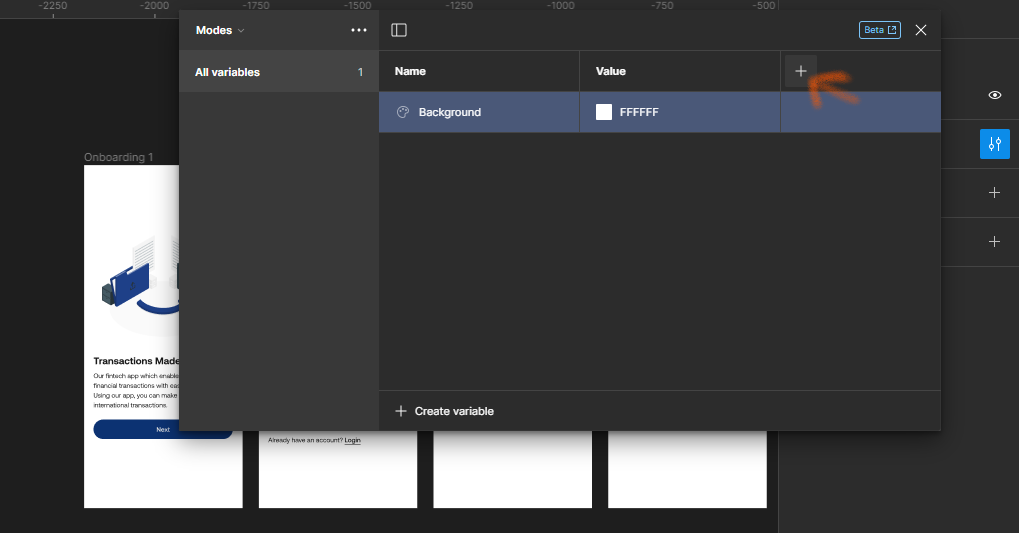
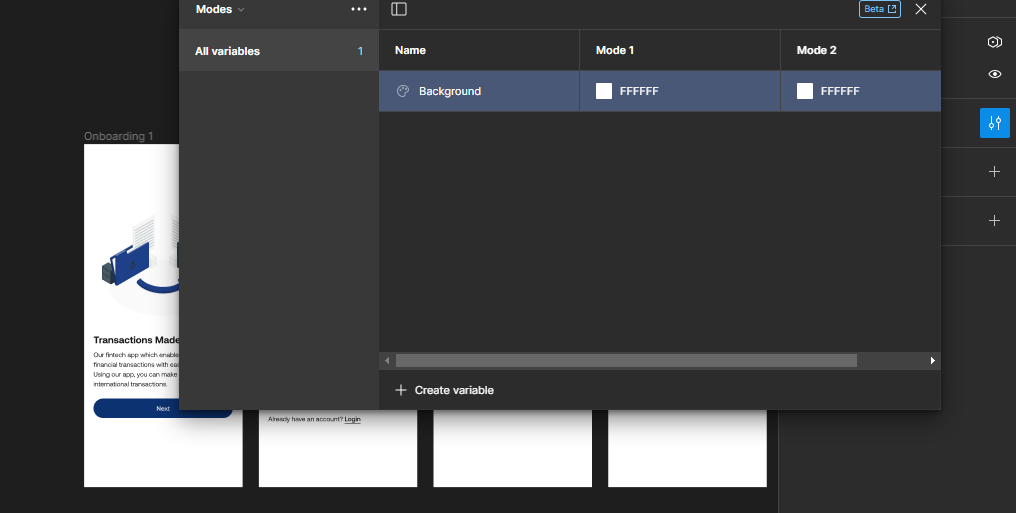
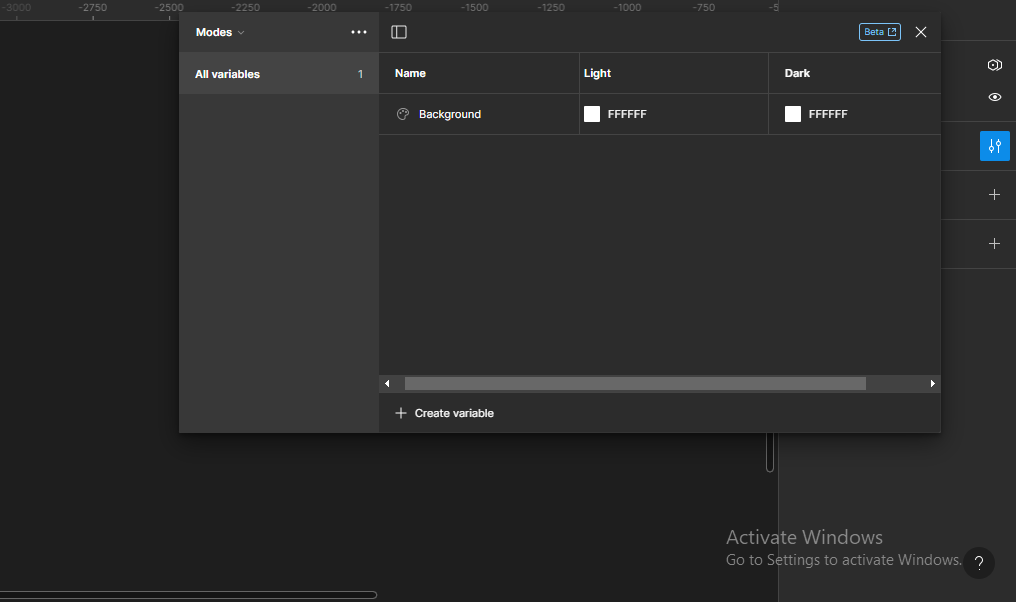
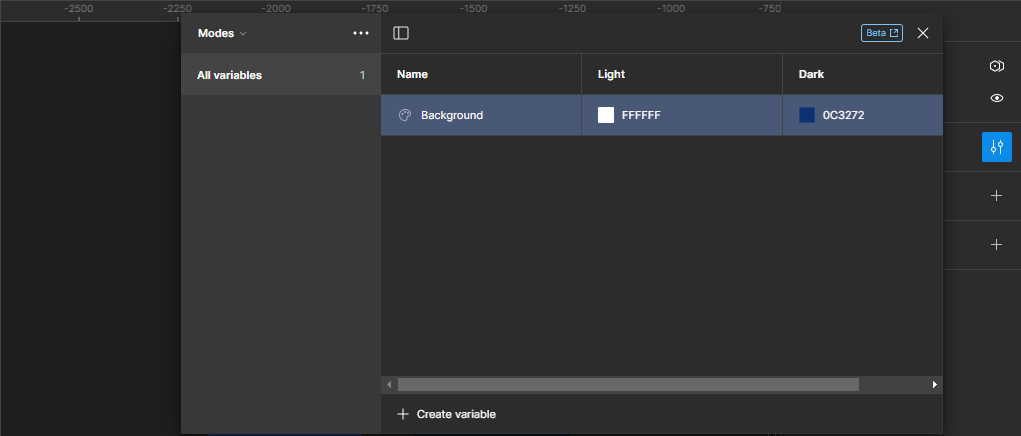
Mode 1 (the first value of the variable – colour code FFFFFF)
Mode 2 (the first value of the variable – colour code FFFFFF)

0 Comments